Table of Contents
- Why Going Live on Instagram Still Matters in 2026
- What You Need Before You Go Live
- How to Go Live on Instagram: Step-by-Step
- How to Schedule an Instagram Live in Advance
- Instagram Live Features You Should Know About
- Tips to Get More Viewers on Your Instagram Live
- Why Your Follower Count Affects Live Performance
- FAQs
Going live on Instagram is one of the fastest ways to build a genuine connection with your audience. No editing, no filters, no waiting on the algorithm. Just you, talking directly to people who chose to show up.
If you have never done it before, the setup can feel a little confusing. This guide walks you through every step — from opening the camera to ending the stream — plus practical tips to make your first live actually worth watching.
Why Going Live on Instagram Still Matters in 2026
Instagram Live has stayed relevant because it does something pre-recorded content simply cannot: it creates urgency. When followers see a live notification, they know it is happening right now, and that pulls them in.
For creators trying to grow, live sessions also help with visibility. Instagram surfaces live content prominently in the Stories bar, which means even smaller accounts can get in front of people who do not already follow them.
For businesses and online stores, going live builds trust faster than any product post. Showing your face, answering questions in real time, and demonstrating a product on camera all move people closer to buying.
What You Need Before You Go Live
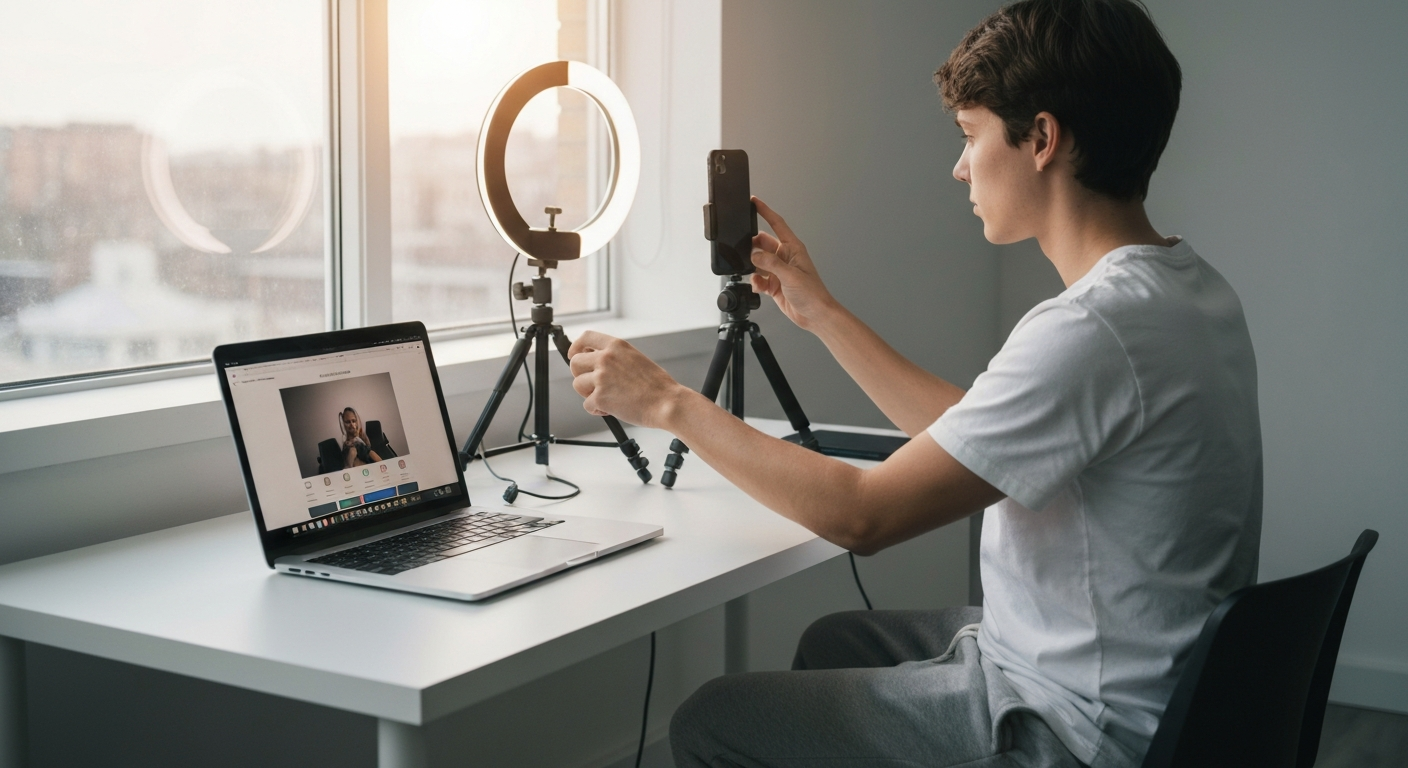
Before you tap that button, run through these basics:
- A stable internet connection. Wi-Fi is ideal. A weak mobile signal will cause buffering and drop viewers quickly.
- Good lighting. Natural light facing you works well. Avoid sitting with a bright window behind you.
- A quiet space. Background noise is distracting and makes you harder to hear.
- A charged phone. Lives can run long. Running out of battery mid-stream is a real risk.
- At least a few followers. Instagram notifies your followers when you go live. A brand-new account with zero followers means no one gets that notification.
How to Go Live on Instagram: Step-by-Step
Step 1: Open the Instagram Camera
Open Instagram on your phone. Tap the + icon at the bottom center of the screen, or swipe right from your feed to open the camera.
Step 2: Select the Live Option
At the bottom of the camera screen, you will see a row of options: Post, Story, Reel, and Live. Swipe until Live is selected.
Step 3: Set Up Your Live Before Starting
Before going live, take a moment to configure a few things:
- Add a title. Tap the title field and type a short, clear description of what your live is about. Something like "Q&A with me" or "New product drop" works well.
- Set an audience. You can choose Public, Close Friends, or Practice (visible only to you). For most creators, Public is the right call.
- Add a fundraiser or product link if it is relevant to your session.
Spend 30 seconds here. A clear title helps people decide whether to join before they even tap in.
Step 4: Start Your Live
Tap the Live button — the large circle at the bottom. Instagram counts down from three, and then you are on.
You will see a viewer count in the top left corner and a comment stream on the right. Give it 30 to 60 seconds before jumping into your content. Viewers trickle in gradually, and starting immediately means most people miss your opening.
Step 5: Manage Your Live in Real Time
While you are live, several controls are available:
- Pin a comment by tapping and holding on it. Use this for your topic or a question you want to keep visible.
- Add a guest by tapping the two-person icon. You can invite another Instagram account to appear on screen with you.
- Turn off comments if things get noisy or off-topic.
- Apply filters using the face icon at the bottom.
- Share a link or product card directly during the session.
Engage with comments by name. Saying "Good question, Priya" keeps viewers watching far longer than ignoring the chat.
Step 6: End the Live and Save It
When you are ready to wrap up, tap the X in the top right corner. Instagram will ask you to confirm. After ending, you will be prompted to share the replay to your feed or Stories, or download the video to your phone.
Save it. That footage can be repurposed as Reels or YouTube content later.
How to Schedule an Instagram Live in Advance
Instagram lets you schedule a live up to 90 days ahead. Here is how:
- Open the Live camera as described above.
- Tap the calendar icon near the title field.
- Set your date and time.
- Tap Schedule Live Video.
Once scheduled, Instagram generates a shareable link and a countdown you can post to your Stories or feed. It is worth doing — giving followers time to plan ahead typically means more viewers when you actually go live.
Instagram Live Features You Should Know About
A few features that are easy to overlook but genuinely useful:
| Feature | What It Does |
|---|---|
| Live Rooms | Go live with up to 3 other accounts simultaneously |
| Q&A Sticker | Collect questions from followers before or during your live |
| Badges | Viewers can buy badges to support you during the live |
| Replays | Your live stays available for 30 days after the session |
| Practice Mode | Go live without anyone seeing — useful for testing your setup |
Badges are worth paying attention to if you are monetizing. Viewers pay real money to send them, and they appear as hearts next to a viewer's name. It is a small but direct revenue stream for creators with engaged audiences.
Tips to Get More Viewers on Your Instagram Live
Going live is easy. Getting people to actually show up takes a bit more effort.
Announce it beforehand. Post a Story or feed post 24 hours before and again an hour before. Tell people exactly what the live will cover and why they should join.
Go live consistently. Viewers learn your schedule. If you go live every Tuesday at 7pm, people start expecting it and planning around it.
Start with energy. The first 60 seconds set the tone. If you look uncertain or spend five minutes asking "can you hear me?", people leave. Open with a clear statement of what you are doing.
Keep it focused. A 20-minute live with a clear topic performs better than a 90-minute stream that wanders. Respect your viewers' time.
Respond to comments out loud. Reading comments aloud and responding by name makes viewers feel seen — and that keeps them watching.
Promote the replay. After the live, share the replay link in your Stories. People who missed it will watch, and that extends the reach of the session well beyond the live itself.
Why Your Follower Count Affects Live Performance
Here is something worth being honest about: Instagram Live notifications go to your followers. The more followers you have, the more people get notified — and the more viewers your live starts with.
That matters because Instagram's algorithm reads early viewer count as a signal of quality. A live that pulls in 50 viewers in the first two minutes gets surfaced more broadly than one that starts with five.
For creators still building their audience, this creates a real challenge. You can post great content, go live consistently, and still struggle to get traction simply because your follower count is low.
One approach some creators take is building their follower base before leaning heavily into live content. A profile with a credible follower count attracts more organic viewers to each session, and that compounds over time.
If you are working on growing your Instagram presence alongside your live strategy, LikeMax is an Android app that lets you buy Instagram followers, likes, and views without sharing your password. It is a straightforward way to build social proof while you develop your content. Download the app at likemax.in.
FAQs
How many followers do you need to go live on Instagram?
There is no minimum. Any account can start a live session. That said, Instagram notifies your followers when you go live, so a larger following naturally means more potential viewers from the start.
Can you go live on Instagram from a computer?
As of 2026, Instagram Live is primarily a mobile feature. You can browse and post from desktop, but going live is built for the mobile app on iOS or Android.
How long can an Instagram Live be?
Up to 4 hours. For most creators, 20 to 60 minutes is a practical and effective length.
Can you go live on Instagram with someone else?
Yes. Instagram supports Live Rooms, which let you go live with up to three other accounts at the same time. You can invite a guest during an active live by tapping the guest icon on screen.
Does Instagram notify your followers when you go live?
Yes — Instagram sends a push notification to your followers when you start a live, as long as they have notifications enabled for your account. This is why follower count directly affects how many people see your live.
Can you save an Instagram Live after it ends?
Yes. When you end a session, Instagram gives you the option to download the video to your phone or share it as a replay on your profile. Replays stay visible for 30 days.
Why is no one joining my Instagram Live?
The most common reasons are a small follower count, no advance promotion, going live at a low-traffic time, or followers having notifications turned off. Try announcing your live in Stories beforehand, going live during evenings or weekends, and staying consistent so your audience learns to expect it.
Going live on Instagram takes less than a minute to start. What determines whether anyone shows up is everything around it — the preparation, the promotion, and how you engage once you are on. Set up your space, announce it in advance, respond to viewers by name, and keep the content focused. Do that consistently, and live sessions become one of your strongest tools for building a real audience.